

Staff, attendance and salary in one place.
Attendance comes from fingerprint and face machines, POS log-in or the staff app. Lates, leave, overtime and loan cuts go into the salary sheet by themselves. The owner approves, then you pay by bank, bKash or cash. Each person sees only what their role needs, so a cashier never sees cost price.
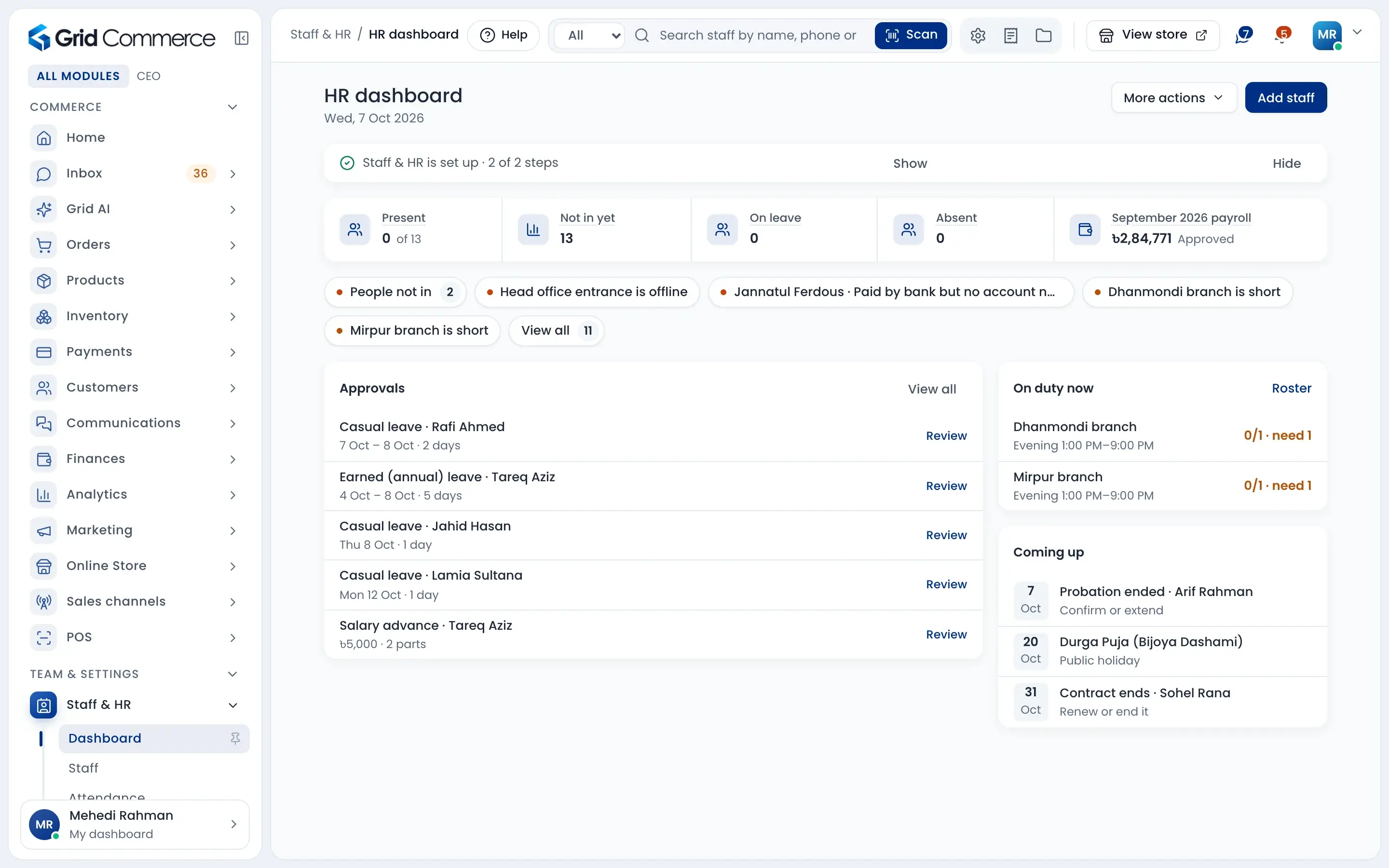
Attendance without the khata
Punches come in from the machines every few minutes. See who is in, who is late and who is on leave, for today and for the whole month.
Salary that adds itself up
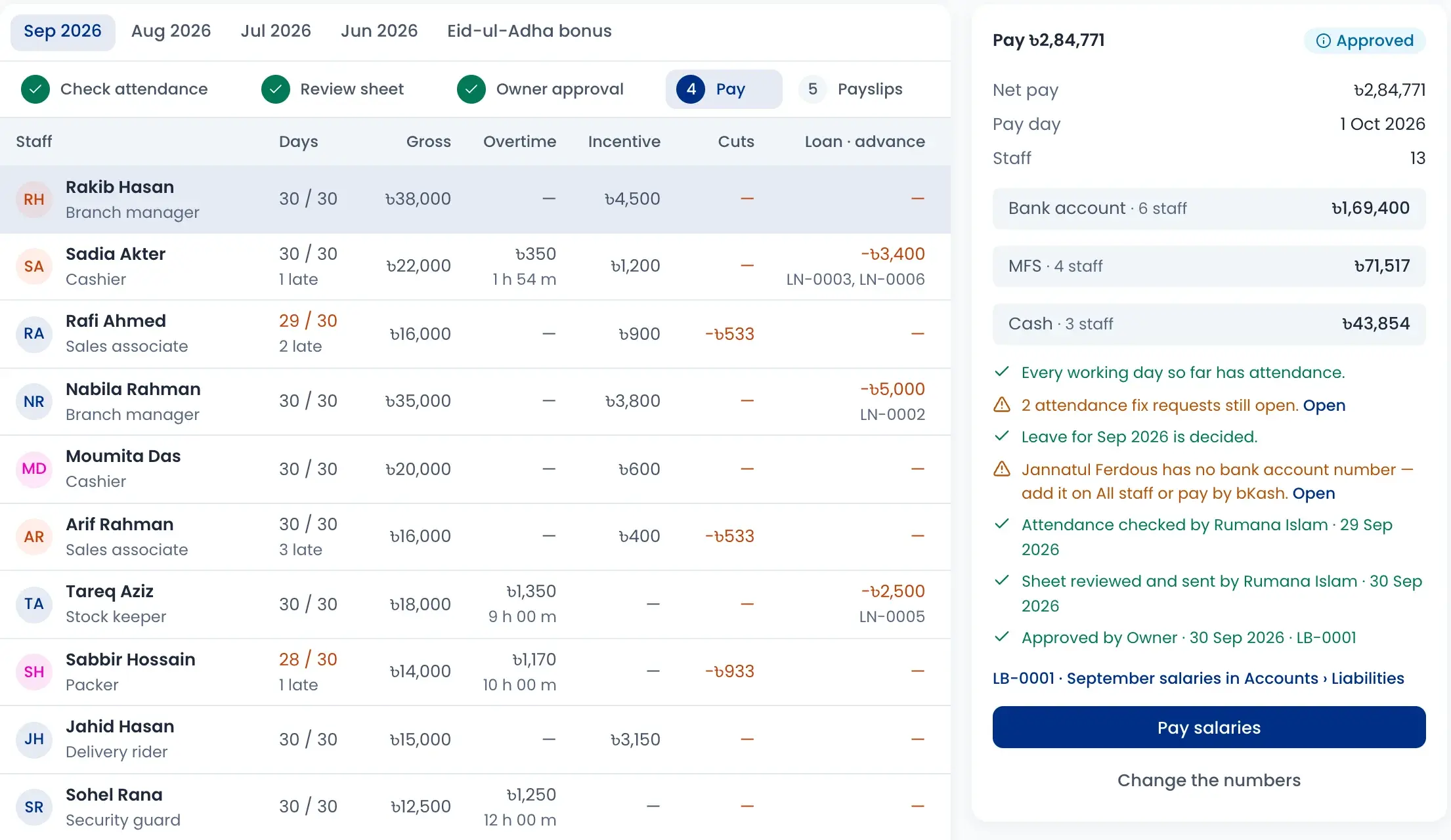
Lates, absences, overtime, incentives and loan cuts are already in the sheet. Check it, get the owner’s approval, pay, then print payslips.
Each person sees only their part
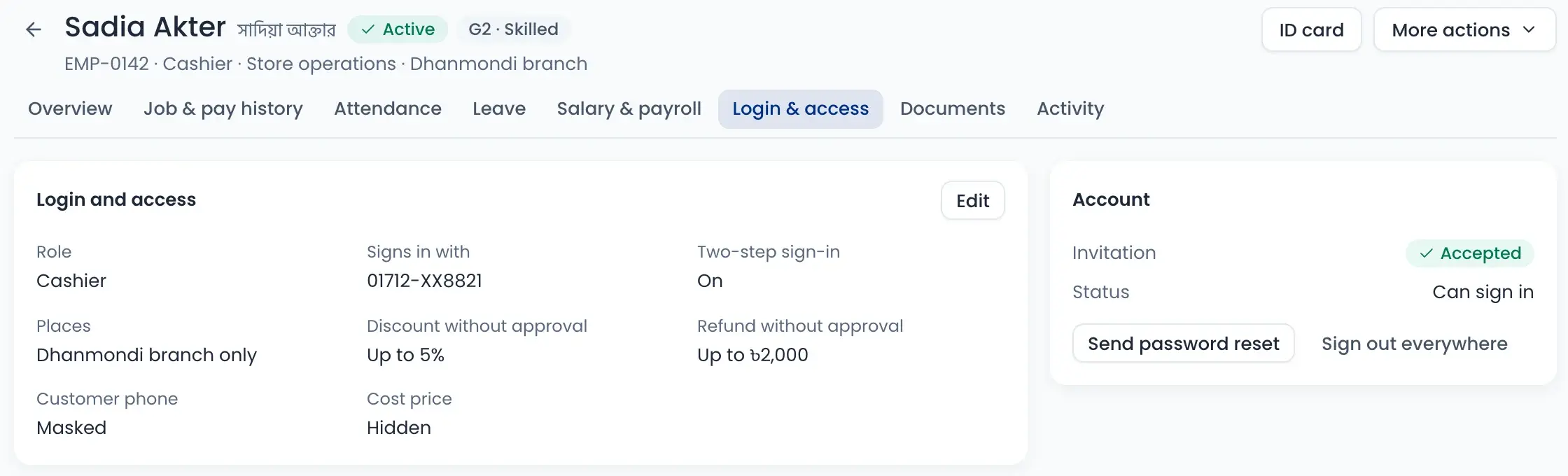
Give each person a role. Hide cost price, mask customer phone numbers and set how much discount or refund they can give without asking.
One profile for every staff member
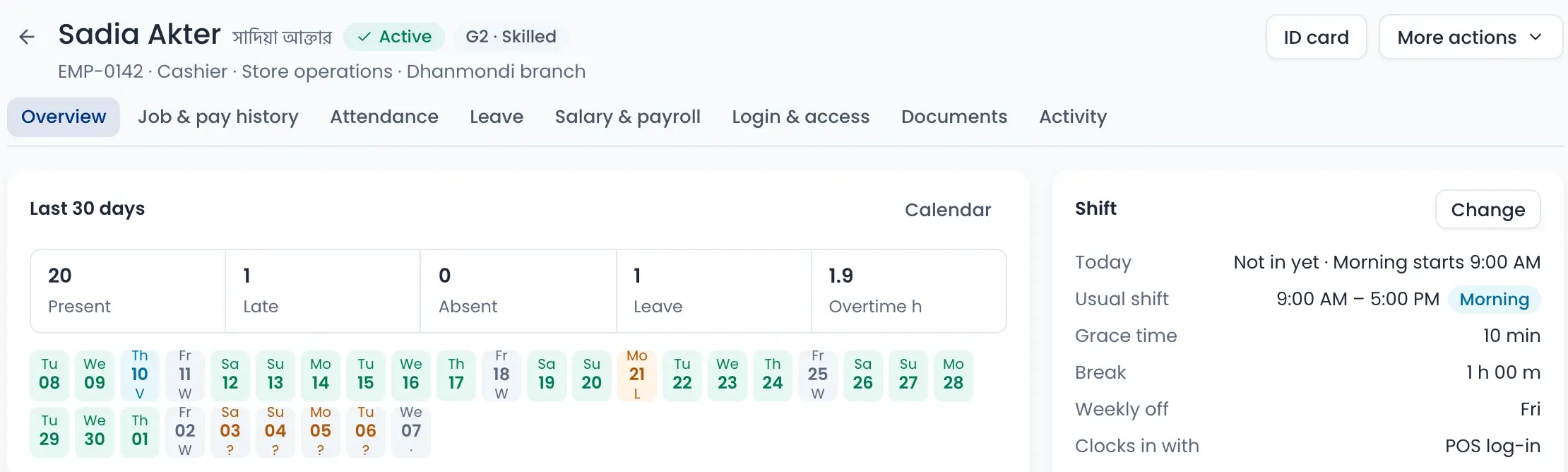
Open a staff member and see everything about them in one place: the last 30 days, their shift, salary, leave, documents and login.
- Present, late, absent and overtime for the last 30 days
- Usual shift, grace time, weekly off and how they clock in
- Job and pay history, documents and an ID card with QR
- Clear status: active, on probation or suspended
Attendance from fingerprint and face machines
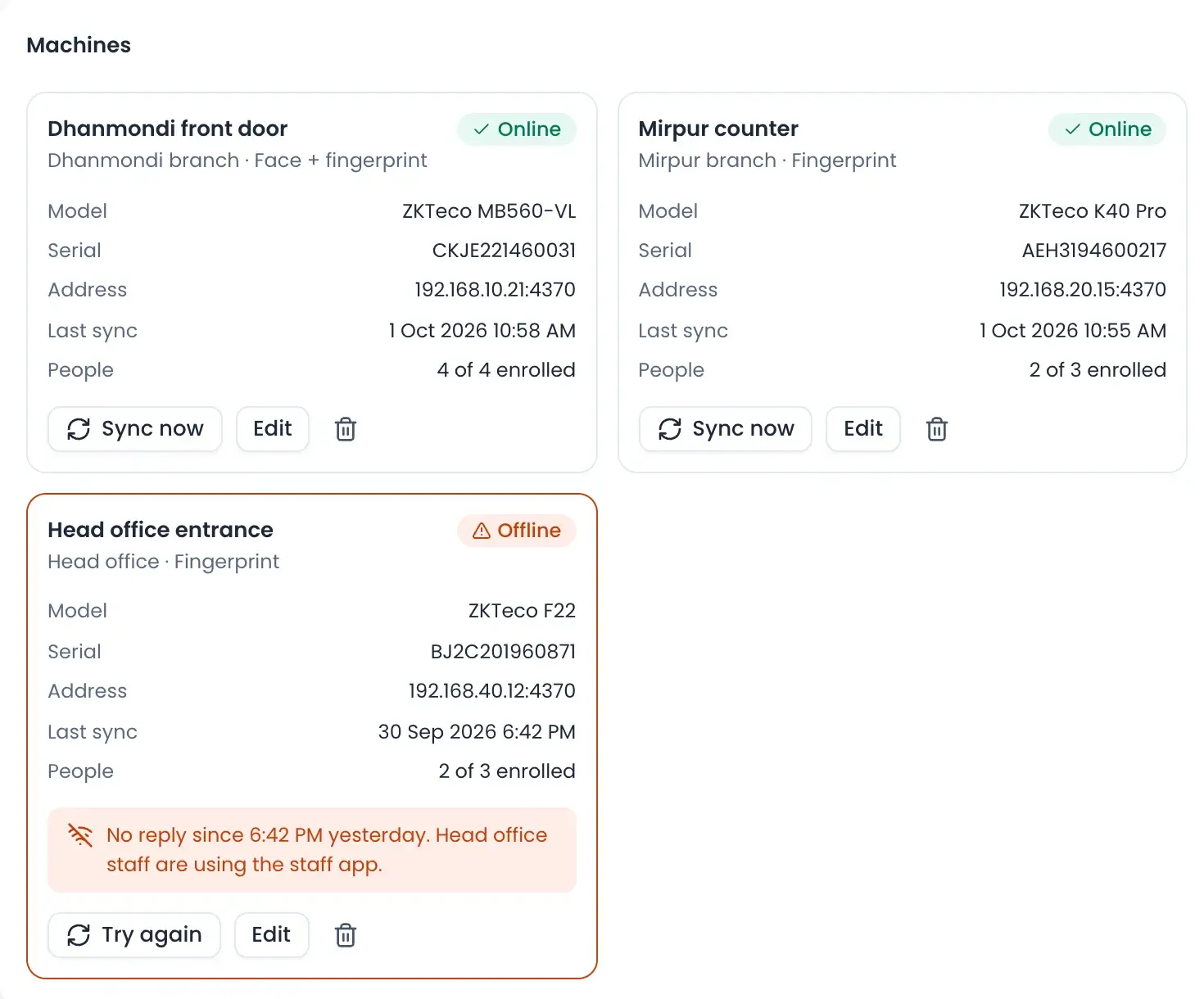
Connect the machines at each branch and warehouse, like ZKTeco. Punches sync on their own. If a machine goes offline, you see it at once, and staff can clock in with the staff app.
- Face, fingerprint or both, on each machine
- See who is enrolled on which machine
- POS log-in and the staff app count as attendance too
- A month register shows present, late, leave and holidays
Shifts and leave without clashes
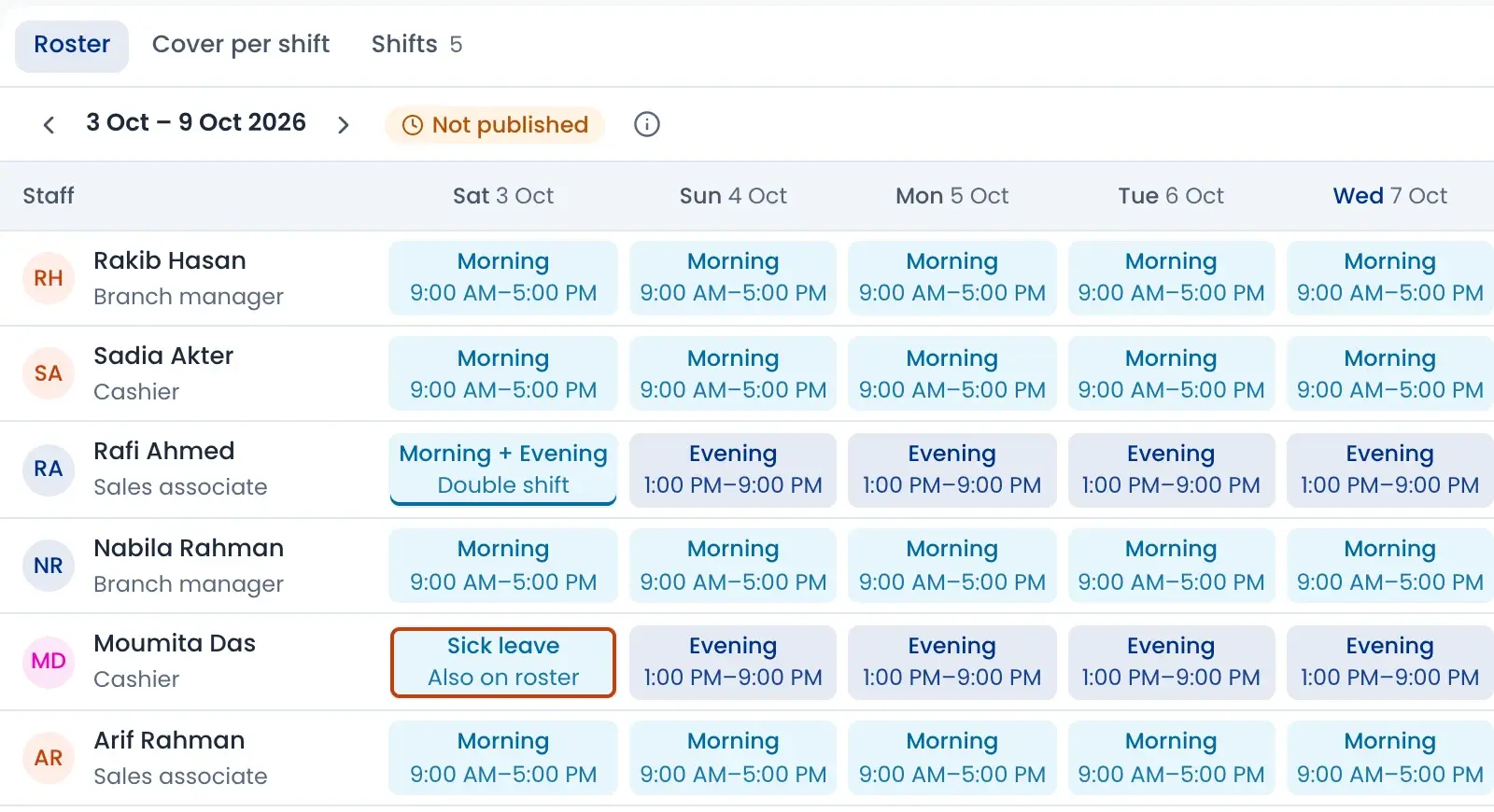
Plan the week person by person. The roster warns you about leave clashes, double shifts and branches that are short of staff.
- Copy last week, then publish the roster
- Approve leave, or apply for a staff member
- Leave balance for casual, sick and earned leave
- Public holidays show on the roster by themselves
Salary in five clear steps
Check attendance, review the sheet, get the owner’s approval, pay, then print payslips. Cuts for lates and absences, overtime and loan instalments are already in the sheet.
- Pay by bank, bKash or cash, with totals for each
- Warnings before you pay, like a missing bank account
- A separate festival bonus run for Eid
- Approved salaries show in Bills to pay
Decide who sees what
Give each person a role, like cashier, shop manager or warehouse manager. The role decides which pages they can open. Then set limits for each person.
- Hide cost price and mask customer phone numbers
- Set discount and refund limits without approval
- Keep a person to one branch only
- Two-step sign-in and ‘sign out everywhere’
How it works
Watch a short overview, then follow the steps.
- 01
Add staff and roles
Add each person with their job, branch, salary and role.
- 02
Connect attendance
Connect the machines, or let staff clock in with POS log-in or the staff app.
- 03
Plan shifts and leave
Publish the weekly roster and approve leave with clash warnings.
- 04
Check and approve salary
Review the sheet with cuts, overtime and loans, then the owner approves.
- 05
Pay and print payslips
Pay by bank, bKash or cash and print a payslip for each person.
Questions sellers ask
Not unless you allow it. On each staff profile, under Login & access, you choose whether cost price is hidden and whether customer phone numbers are masked.